Snip & Sketch

Want to capture and annotate screenshots quickly? Get the Snip and Sketch app on your Windows PC and start taking snips using your mouse, touch, or pen.
What is Snip and Sketch?
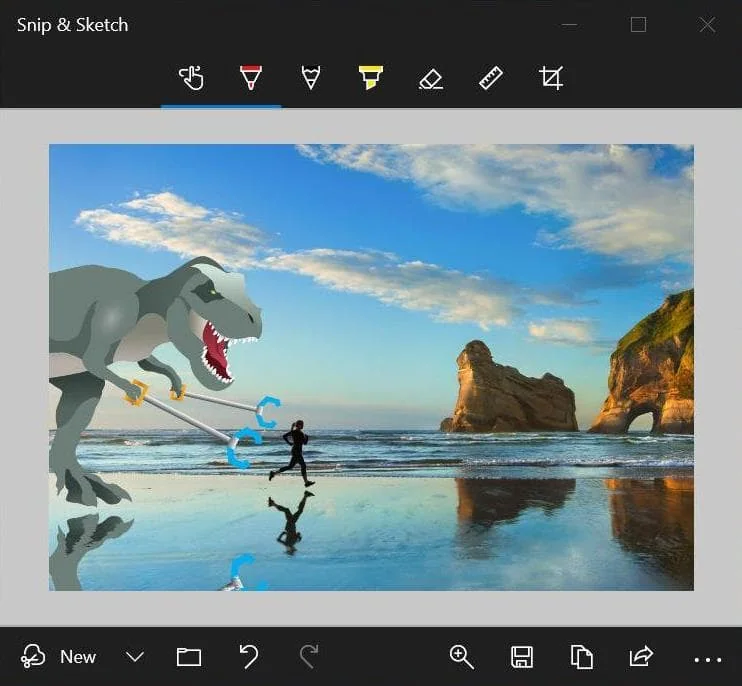
Snip & Sketch is a free screen capture tool that allows you to take screenshots, annotate images, and share them via email, social media, or other compatible apps.
Microsoft first introduced it as Screen Sketch, a feature within Windows Ink Workspace in Windows 10. In October 2018, the company renamed it to Snip & Sketch and made it available as a standalone app through the MS Store.
The app included useful options like Auto copy to clipboard, Snip outline, Snip delay, and Ask to save before closing. It also supported keyboard shortcuts for various actions.
4 Easy Capture Modes
Choose the type of snip you want to take from the snipping toolbar. Each mode lets you capture an image of your screen in a different way.
Rectangular Snip
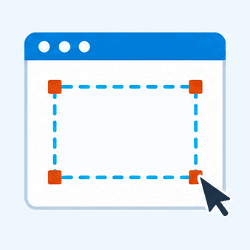
Click and drag the cursor to select a rectangular area of your screen. It works well for capturing a specific part of a webpage or document.
Freeform Snip

Draw a free-form shape around an object that you want to capture. You can use this mode for custom or irregular shapes.
Window Snip

Click on any active window to capture it with clean edges. Ideal for taking screenshots of open dialog boxes or error messages.
Fullscreen Snip

Select this mode & capture the entire screen in just one click. It’s great if you want a complete snapshot of your computer display.
Key Features
Simple User Interface

It has a very minimal & straightforward interface. The toolbar at the top gives you quick access to all screenshot modes and other settings.
Annotation Tools
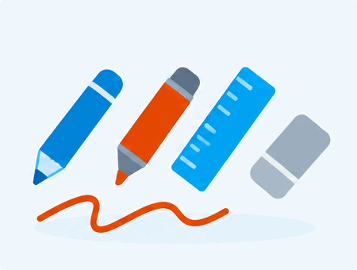
Easily mark up your screenshots with tools like pen, pencil, highlighter, ruler, and eraser. Use them to draw lines, add notes, & highlight important parts.
Editing Tools
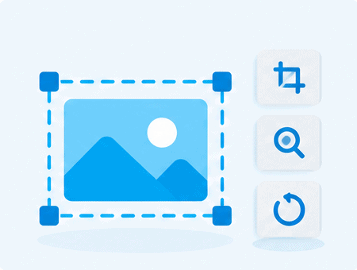
As a screenshot tool, it only provides basic editing options, such as Zoom in/out up to 400x and Image Crop to trim unwanted edges or areas.
Delay Timer

You can also set a short delay (like 3 or 10 seconds) before capturing your screen when you need time to open menus, dropdowns, or tooltips.
Save & Share
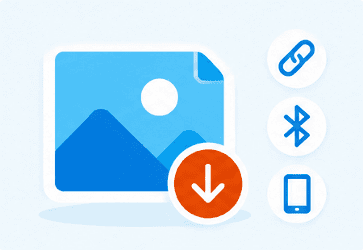
Save your captured snips as PNG, JPEG, and GIF files. Or share them directly with nearby devices using Bluetooth or the Phone Link application.
100% Free

This software is completely free to download, and you can use all its features without any subscription fees or hidden charges.
How to use Snip and Sketch On Windows PC?
1. Open Snip & Sketch
Press “Win + Shift + S” to instantly open the app. Your screen will dim and the snipping toolbar will appear.
2. Choose Your Mode
Select the capture mode from the top toolbar: Rectangular, Freeform, Window, or Fullscreen.
3. Select the Area
Now click & drag around the area you want to snip. For Window or Fullscreen mode, simply click on the screen.
4. Edit and Save
After you capture a snip, make the necessary edits or annotations and then save the final image.
Ready to give it a try? Download now!
Frequently Asked Questions
Ans. No, Snip & Sketch is not officially discontinued by Microsoft. Instead, it has been merged with the new Snipping Tool, which combines features from both apps and has a modern user interface.
Ans. Yes, you can still get Snip & Sketch on your Windows 10 PC, as long as your device meets the minimum system requirements. To install it, download the setup file from here.
Ans. No, Windows 11 does not have a separate Snip & Sketch app. But it has the updated Snipping Tool, which offers features such as Text actions for extracting text from screenshots and Screen Recording for capturing video snips.
Ans. Snip and Sketch does not automatically save screenshots as permanent files but it directly copies them to the clipboard, so you can paste them into other apps or save them manually. If you forgot to save a recent snip, you may still find a temporary copy at this cache location on your computer.
Ans. For Windows 10 users, Snip & Sketch is a better option because it makes capturing and annotating screenshots much easier. For more details, you can read our detailed comparison article.
Ans. It usually stops working because of corrupted app files, outdated software, or other system issues. To fix it, try the Repair or Reset options in Windows settings or follow our troubleshooting guide.
Ans. No, Snip and Sketch is not available for Mac. However, macOS users can easily use the built-in screenshot utility or can try similar third-party alternatives.